First Person Basketball Camera, Sensitivity & Online Settings
Configure Stable or Dynamic camera, then keep lobbies on the same build.
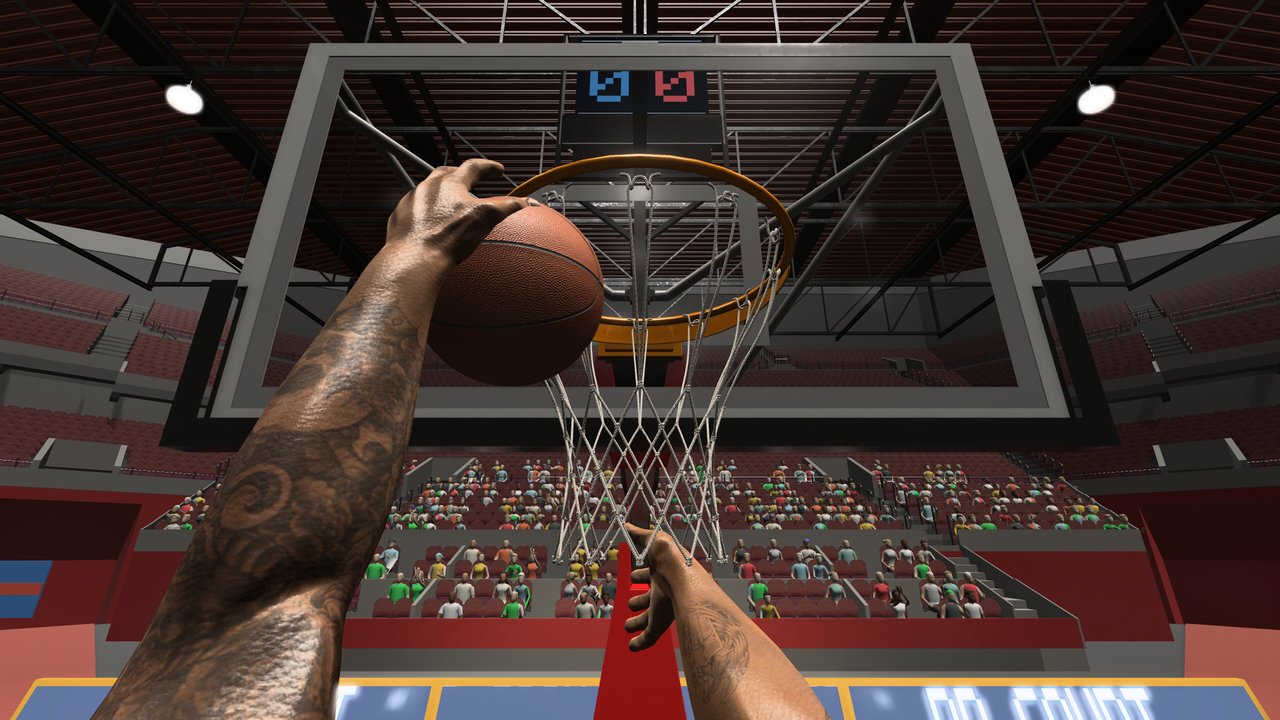
This Settings Guide is the practical companion for First Person Basketball on Steam (app 5478590). The game keeps on-court actions simple—WASD, Space, and the mouse—so most of your “build crafting” happens in Settings and in how you warm up. Since the November 5, 2026 patch, Stable Camera is the default for new players, while Dynamic Camera remains available. Existing preferences are preserved, and both modes share the same gameplay rules.
Use this page with the Tools Hub, the Camera & Replay Patch write-up, and skill guides like How to Shoot, How to Dunk, and Controls.
Stable Camera vs Dynamic Camera
Stable Camera (default for new players)
Stable prioritizes a steadier first-person presentation. Many players find release timing and rim tracking easier to learn here, especially for catch-and-shoot jumpers and controlled layups. If you installed after the November 5 update and never touched camera options, you are likely already on Stable.
Try Stable when:
- You are learning the jumper from scratch.
- Dunk framing felt chaotic and you want a calmer baseline.
- You report camera jolts and need a consistent reproduction setup.
Dynamic Camera (still available)
Dynamic remains a first-class option in Settings. It can feel more alive during drives and finishes. Because gameplay rules match Stable, switching is about comfort and readability—not unlocking a secret competitive advantage.
Try Dynamic when:
- You preferred it during the demo or launch day.
- You want to compare dunk framing after the animation/camera pass.
- Stable feels too “locked” for your mouse style.
Decision drill (ten minutes)
- Set Stable. Make ten jumpers, five layups, five dunks in practice.
- Set Dynamic. Repeat the same twenty shots from similar spots.
- Keep the mode where the rim stays readable at the gather—not the mode that looks cooler in a single clip.
- Write down your choice so you do not accidentally flip it before a tournament night with friends.
Patch context for framing improvements: Camera & Replay Patch. Meta context for which finishes to practice: Tier List Hub.
Sensitivity tips
There is no single magic number for every mouse DPI. Aim for a sensitivity that satisfies three checks:
- Slow tracking — You can drag smoothly along the rim without jitter while lining up a set jumper.
- Quick look — You can shoulder-check a help defender or rotate to a pass target without a full desk swipe.
- Gather stability — During layup or dunk gather, tiny mouse noise does not throw the finish wildly off line.
Practical method
- Start mid-range in the settings slider (or your current value).
- If jumpers feel twitchy, lower sensitivity slightly and re-test ten shots.
- If you cannot snap to a cutter in 3v3–5v5, raise slightly and re-test passes plus one pull-up.
- Change one step at a time; huge jumps erase muscle memory.
- Re-validate after any Windows mouse acceleration changes or new hardware.
Pair sensitivity work with the release drills in How to Shoot. Input overview: Controls.
Volume and audio cues
Audio will not aim for you, but it helps you read the floor:
- Keep master volume at a level you can sustain for long sessions.
- Raise effects enough to hear useful contact and UI feedback without pain.
- Lower music if it masks footsteps or ball hits during online sets.
- After the online replay improvements, listen for transition cues so you are not moving during a replay-to-gameplay handoff.
If a future patch adds more granular sliders, this section will expand. For now, treat audio as part of comfort—fatigue creates late contests more often than “bad tier choices.”
Practice vs online settings habits
Practice
Practice is your laboratory. After visiting the Controls menu, confirm hands are visible when you return—the November 5 update addressed missing shooting arms in that flow, but a quick visual check still costs nothing. Use practice to:
- Groove jumper timing on Stable or Dynamic.
- Inspect dunk hand path and rim contact under the improved framing.
- Test sensitivity changes safely.
AI
AI bridges practice and humans. Keep the same camera and sensitivity you plan to use online so help-defense reads transfer.
Online (1v1–5v5)
Online adds hosts, clients, scoring replays, and version risk. Before serious games:
- Confirm camera mode intentionally.
- Avoid rewriting sensitivity five minutes before tip-off.
- Wait out replay and pause transitions—non-host replay handling improved on November 5.
- Expect that occasional camera jolts or control interruptions may still appear; note context if you report them.
Version-match reminder for multiplayer
Everyone must run the same game version before playing online. Mixed builds cause confusion that looks like “lag,” “missing fixes,” or broken replays. Habit stack:
- Watch for Steam update toasts on app 5478590.
- Restart the game after updates—not only the overlay.
- Ask each friend to confirm they updated.
- Host only when the party is aligned.
- If someone joins mid-session from an old build, remake the room after they update.
Verify patch existence via Steam news using habits on the Links Hub. Timeline overview: Updates Hub.
Pre-session checklist (copy/paste mentally)
- Steam client updated; game updated; game restarted.
- Camera: Stable or Dynamic chosen on purpose.
- Sensitivity unchanged from last good practice block (or freshly validated).
- Volume comfortable for thirty-plus minutes.
- Practice smoke test: jumpers + layups + dunks, hands visible.
- Friends on the same version.
- Room size agreed (1v1 through 5v5).
After a patch: mini audit
Whenever Updates lists camera, animation, or netcode notes:
- Re-read the child patch page.
- Re-run the Stable vs Dynamic drill if defaults changed.
- Re-test dunk framing with How to Dunk.
- Re-test jumper timing with How to Shoot.
- Only then judge whether the Tier List still matches your conversion rates.
System baseline reminder
Store guidance highlights Windows 11 64-bit and a small storage footprint around 2 GB, with a low purchase price near $1.99 (regional pricing varies). Settings tweaks will not replace inadequate hardware, but they prevent self-inflicted aim problems on capable PCs.
Closing mindset
Great first-person basketball feel is mostly consistency. Pick a camera mode, own a sensitivity, warm up in practice, and refuse mixed-version lobbies. Do that, and every guide on this wiki becomes easier to apply. Skip it, and even S-tier finishes from the tier list will look random.
Return to the Tools Hub for related helpers, or jump to Getting Started if you are still learning the full session flow.
Frequently Asked Questions
Quick answers to the most common First Person Basketball questions.
Should I use Stable or Dynamic camera?
New players default to Stable after the Nov 5 2026 update. Dynamic stays available. Both share gameplay rules—pick the mode where the rim stays readable during gathers.
Will changing camera mode change competitive rules?
No. Official notes state both options use the same gameplay rules. The difference is presentation and comfort.
How do I tune mouse sensitivity?
Validate slow rim tracking, quick shoulder checks, and stable gathers. Adjust in small steps and re-test ten shots in practice after each change.
Why must friends match game versions?
Mixed builds cause desync-like issues and uneven fixes. Update via Steam, restart, and confirm the same version before online 1v1–5v5.
What should I re-check after the camera patch?
Hands visibility after Controls→practice, dunk framing on both camera modes, and online replay transitions—then resume normal warm-ups.